How to Stop 8 AI Apps From Training on Your Chats
In the reel I went through eight AI apps and showed where each one hides the switch that lets your chats train its next model. ChatGPT, Claude, Gemini, Grok and X, Meta AI, Copilot, Perplexity and DeepSeek. Most of them ship with it on.
This is the long version, with the exact names and paths as of November 20, 2026. Two of these apps changed their settings in the last few months, so a couple of steps here are already different from what the reel shows. When that happens, I follow what the app shows today.
1. ChatGPT
On the web, click your name in the bottom left corner, then Settings, then Data controls. Turn off Improve the model for everyone. On iPhone or Android, open the sidebar, tap your profile, then Settings, then Data controls, and turn off the same switch.
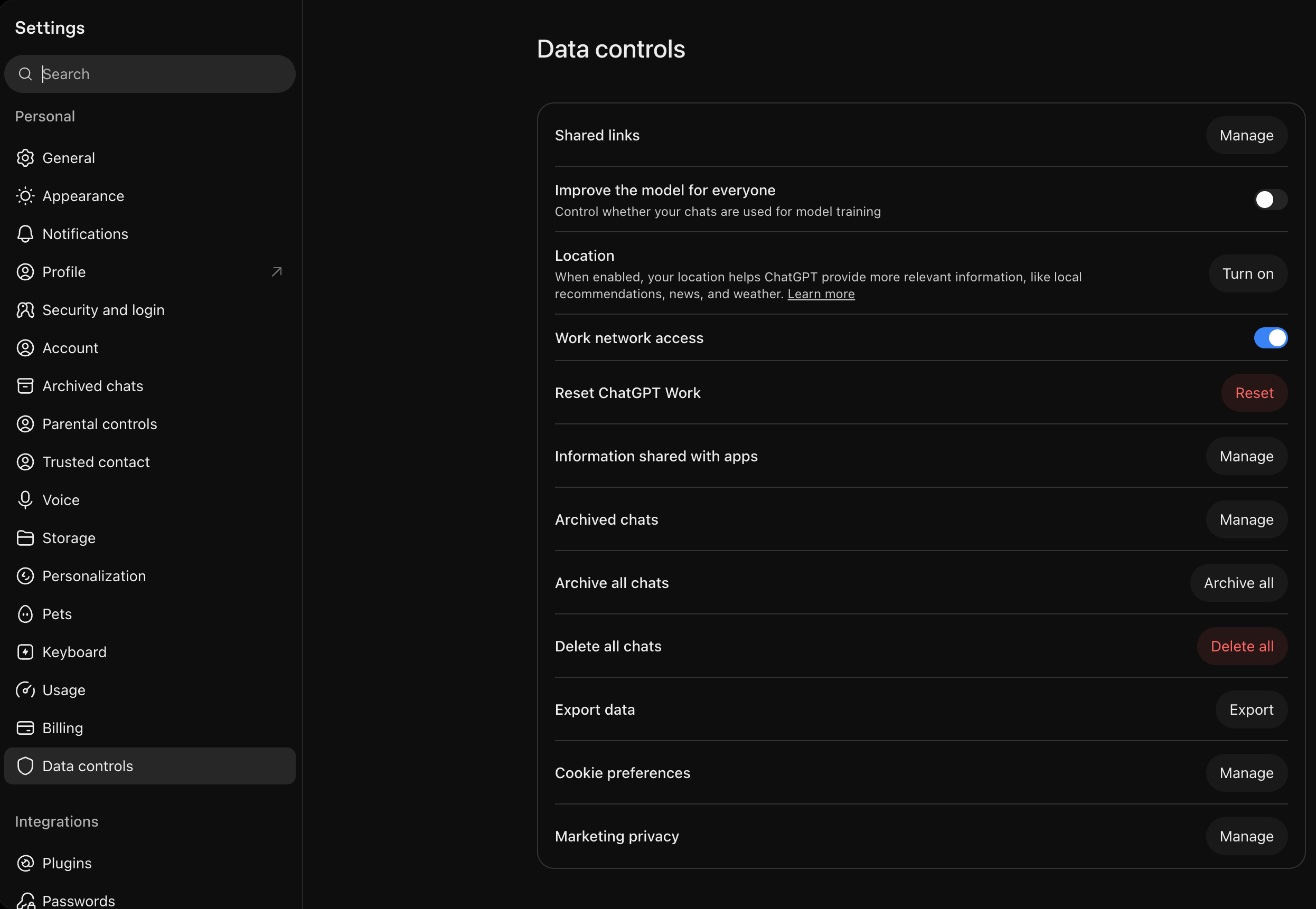
OpenAI says in its Data controls help page that when you are signed in, the setting follows your account on every device. Your chat history stays where it is. Only new chats stop going into training.
2. Claude
Open the menu under your name, then Settings, then Privacy. Turn off Help improve our AI models. The path is the same in the mobile app. Anthropic's privacy center says this keeps new chats and coding sessions out of training on Free, Pro and Max plans.
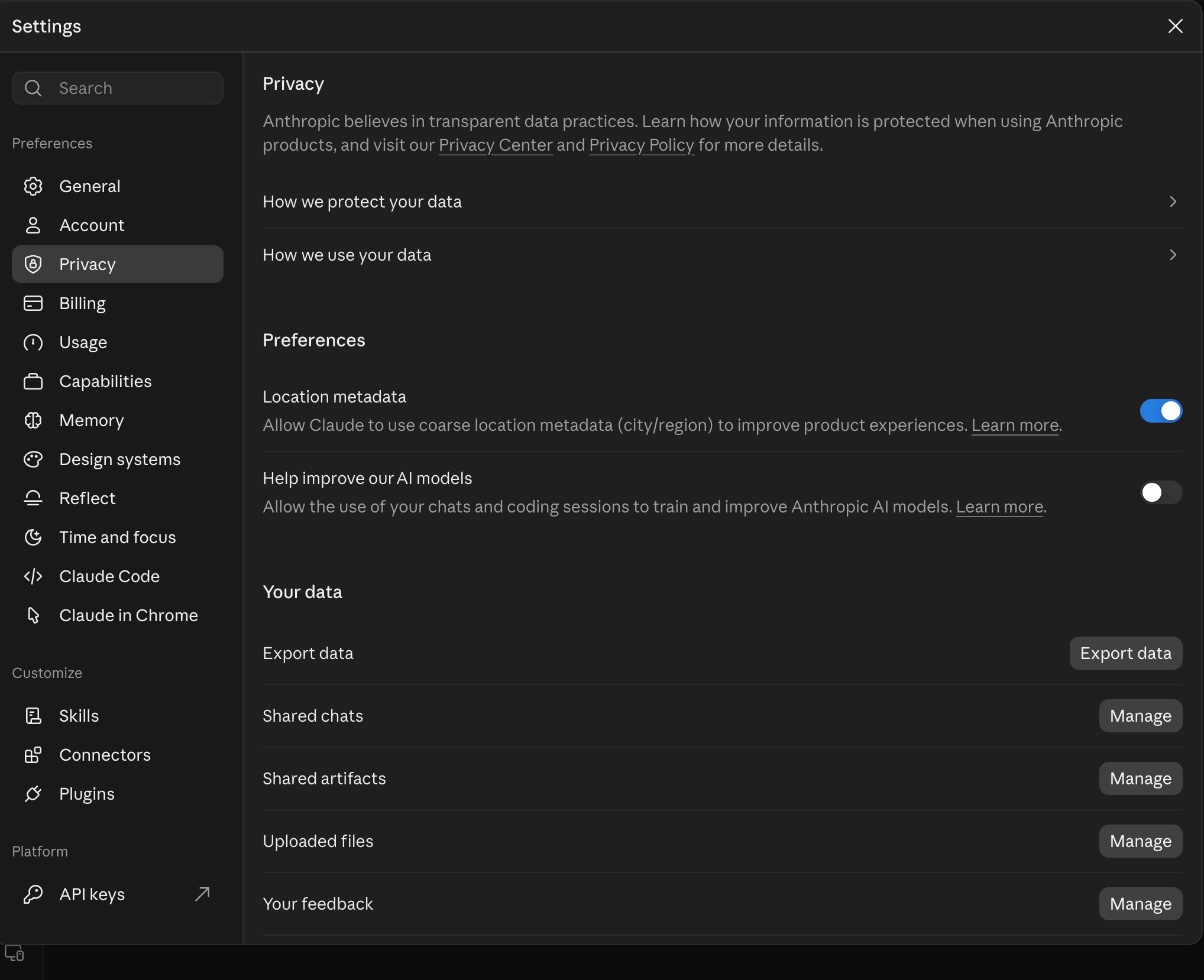
For Claude and ChatGPT there is more worth cleaning than this one switch: shared chat links, memory and published pages. I wrote a separate AI privacy cleanup guide for that.
3. Gemini
This is the one that changed after I recorded the reel. On November 16, Google announced that it is splitting the old Keep Activity switch into two: one for your chat history and one for training. It is rolling out over the coming weeks, so you will see one of two screens.
If your Gemini settings have a History page:
- Open Settings. In the mobile app it sits at the bottom of the menu.
- Tap History. In the app it is under Data & privacy.
- Uncheck Chat content including text & uploads.
- Uncheck Audio and Gemini Live videos & screenshares too.
- Tap Turn off.
You can keep History on and still say no to training.
If you still see the older screen, tap your profile picture, open Gemini Apps Activity and turn it off. That is the step from the reel. Either way, Google's Gemini help page says chats are still kept on your account for around two months when History is off, so Google can run the service and process feedback. With a work or school account, your admin controls this, not you.
4. Grok, and X if you use it
In the Grok app, go to Settings, then Data Controls, and turn off Improve the Model. On grok.com the same switch is in Settings, under Data.
If you have an X account, there is a second switch, because X can use your public posts to train Grok. On X, go to Settings and privacy, then Privacy and safety, then Data sharing and personalization, then Grok & Third-party Collaborators. Uncheck the box that allows your public data and your Grok interactions to be used for training and fine-tuning. X explains both settings on its About Grok page.
5. Meta AI
The Meta AI app has no switch for this. Under Settings, then Data & privacy, you can manage and delete your chats, but nothing there stops training.
What exists depends on where you live. In the European Union, the UK and some other countries, Meta's Privacy Center has a form called Object to your information being used for AI at Meta. Meta's help page on objections says that in certain countries the objection can cover your public posts and your interactions with its AI features. It only applies to future training. Even that is disputed: the Hamburg data protection office wrote in 2025 that chats with Meta AI could not be objected to. Send the form if you can, but do not count on it.
In the US and most of Latin America there is no opt out. If the form tells you it is not available in your region, the only control left is what you type. I do not tell Meta AI anything I would not post publicly.
6. Copilot
Copilot used to have two switches, one for text and one for voice, and most guides still show them. Microsoft released a new Copilot app on August 18, 2026, and for that version its privacy page says your prompts, responses and files are not used to train its foundation models. That is why the new app has no training switch to look for.
If your app still shows the older layout, open your profile, then Privacy (on Windows and Mac it is Settings, then Privacy), and turn off both Training on conversation activity and Training on voice conversations. Microsoft lists those steps in its older privacy controls page.
7. Perplexity
Click your avatar, then All Settings, then Preferences. Turn off AI data retention. Some guides still call it AI Data Usage, the name older Perplexity help pages used. The current data collection page calls it AI data retention and says it is on by default for Free, Pro and Max accounts.
Perplexity documents this path on the web, so that is where I would do it.
8. DeepSeek
On the web, open the sidebar, click the three dots next to your name, then Settings, then the Data tab. Turn off Improve the model for everyone. In the app it is the same switch under Settings, then Data controls. DeepSeek's terms of use name this switch as the way to opt out, and its privacy policy adds that you can also ask by email at privacy@deepseek.com.
Two things almost nobody explains
First, none of these switches reach backward. Anthropic, Perplexity and Microsoft all say it in their help pages: turning it off protects what you send from now on. Whatever already went into a model stays there, so do it today.
Second, be careful with thumbs up and thumbs down. OpenAI's page on how your data is used says that rating a response can let the whole conversation be used for training, even if you opted out. X says the same about Grok. Anthropic's training page says feedback you send may be used to train its models. A thumb looks like a tiny reaction. In practice it can hand over the entire chat, so I never rate a conversation with anything private in it.
Check again after big updates
These settings move fast. Gemini changed its screen this week and Copilot changed its whole app in August. Every time one of these apps ships a big update, open its privacy screen again and make sure your choice is still there.
And sign in before you change anything. Without an account, your choice has nowhere to live. ChatGPT, for example, saves a signed out choice only in that one browser. If a chat matters, sign in, turn the switch off, and then talk.