Where iPhone Live Captions Lives and How to Turn It Off
The reel was about Live Captions, the iPhone feature that turns anything it hears into text on your screen, as it happens. I showed where it lives, how to turn it off or just pause it, the separate switch in FaceTime, and three more microphone settings I check on every new iPhone.
Here is the long version. It also covers the part a short video cannot: what Live Captions actually does with your audio, which iPhones and languages get it, and how to turn it on fast when you do want it.
What Live Captions does with what it hears
Live Captions shows a small floating panel with a running transcript. It can listen to audio playing on your iPhone, like a video, a podcast or a FaceTime call, or to the microphone, so it captions the people talking around you. For someone who does not hear well, it is one of the best things Apple has shipped.
It sounds like your phone is writing down everything in the room. The reality is calmer. Live Captions is off unless you turn it on, you can see it on screen while it works (the panel, or a small button when it collapses), and when Apple introduced it, it said the captions are generated on device, so user information stays private and secure. The transcript is made by the phone itself.
That does not make it harmless. The text is on your screen for anyone next to you to read, you can copy it, and as you will see below, phone call captions can be kept for an hour. Knowing where the switches are is still worth five minutes.
According to Apple's Live Captions guide, it works on iPhone 11 or later. It first arrived in iOS 16 in English only. Spanish came with iOS 26, and Apple's feature availability page now lists Spanish for Mexico, Spain and the United States, next to English, French, German, Japanese, Korean, Mandarin and Cantonese. If you do not see Live Captions in your settings, the language or region of your iPhone is the usual reason.
Turn it off in Settings
- Open Settings.
- Tap Accessibility.
- Tap Live Captions and switch it off.
The same screen has Appearance, for the text size and color, and Keep Call Captions, which I explain further down.
If it keeps turning itself back on, something is triggering it. Check two places: Settings, Accessibility, Accessibility Shortcut, where a triple click of the side button can toggle features, and Settings, Accessibility, Touch, Back Tap, where a double or triple tap on the back of the phone can do the same. Set anything you did not choose on purpose to None.
Pause it instead
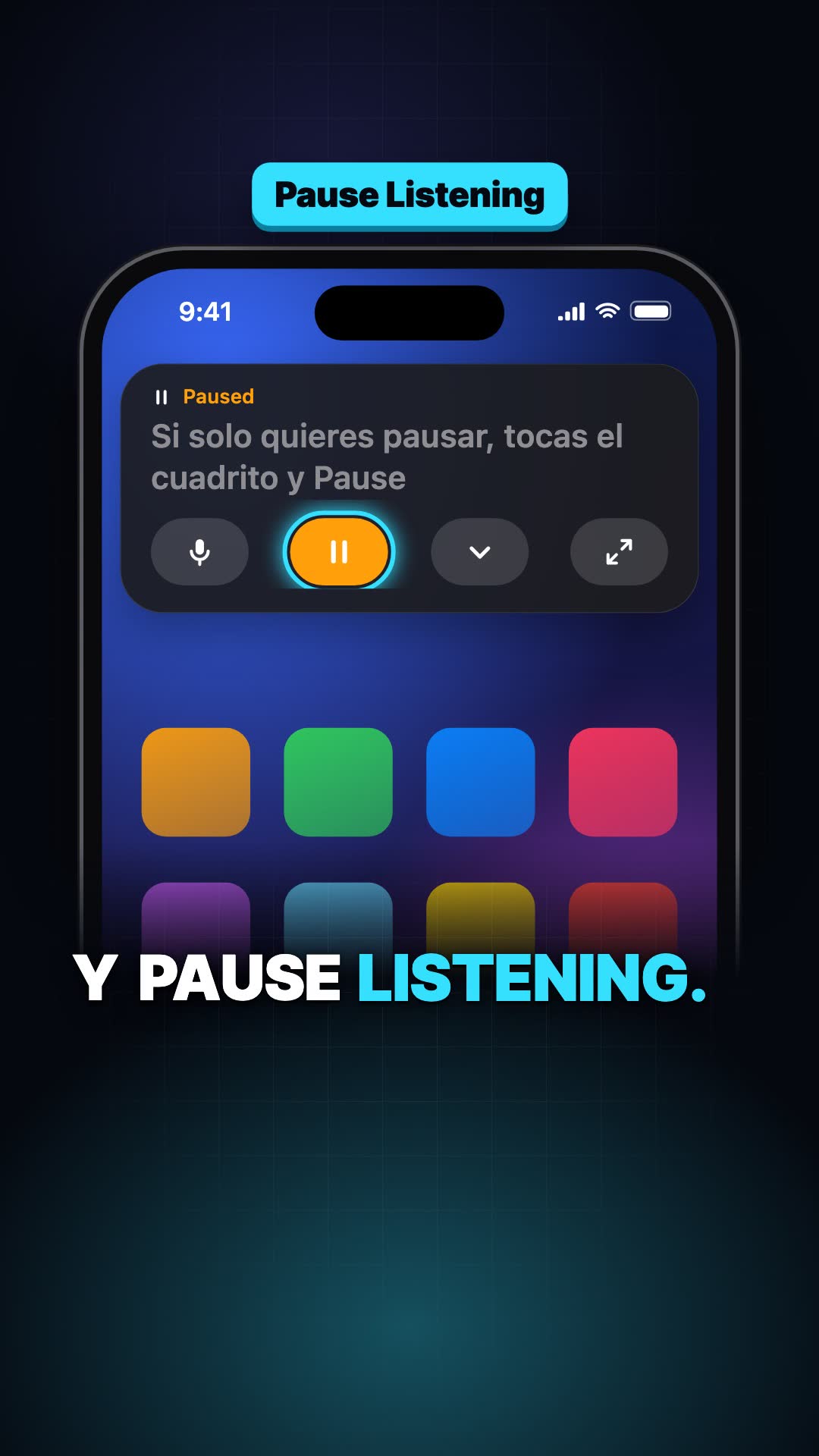
If you use Live Captions and only want it quiet for a moment, you do not need to go back to Settings. Tap the Live Captions panel, then tap Pause Listening. From the same panel you can pick Microphone or iPhone Audio, maximize it, or swipe it to the side to hide it. It also hides by itself when there is no audio.
FaceTime has its own switch
FaceTime can show captions inside the call even when the main switch is off. To control it, go to Settings, then Apps, then FaceTime, and turn Live Captions off. On iOS versions before 18 it lived under Accessibility, then Live Captions, in the in app section.
During a call you can also turn it on or off from the call itself: tap the screen, tap the More button, then Live Captions, or Stop next to it. Apple covers this in its FaceTime captions guide. Live Translation in FaceTime is a different feature and needs an iPhone with Apple Intelligence, which means iPhone 15 Pro or later.
Phone call captions and the one hour option
On iOS 26 and later, the Live Captions screen has Keep Call Captions. With 1 Minute, call captions are only kept for up to a minute during the call and you cannot copy, screenshot or record them. With 1 Hour, they stay for up to an hour after the call and you can copy them. Apple handles the privacy part well here: with 1 Hour, everyone on the call hears "This call is being transcribed" at the start. If you do not need the transcript afterward, leave it on 1 Minute.
Hearing and Live Listen in Control Center
Live Listen is a different feature that people mix up with captions. It streams the iPhone microphone into your AirPods or hearing aids, so the phone works as a remote microphone, as Apple's Live Listen guide describes. It is great in a noisy restaurant, and not something you want switched on by accident.
It sits behind the Hearing control in Control Center, the ear icon. If you do not use it, take it out:
- Swipe down from the top right corner to open Control Center. On an iPhone with a Home button, swipe up from the bottom.
- Tap the Add button in the top left corner to start editing.
- Tap the Remove button on the Hearing control.
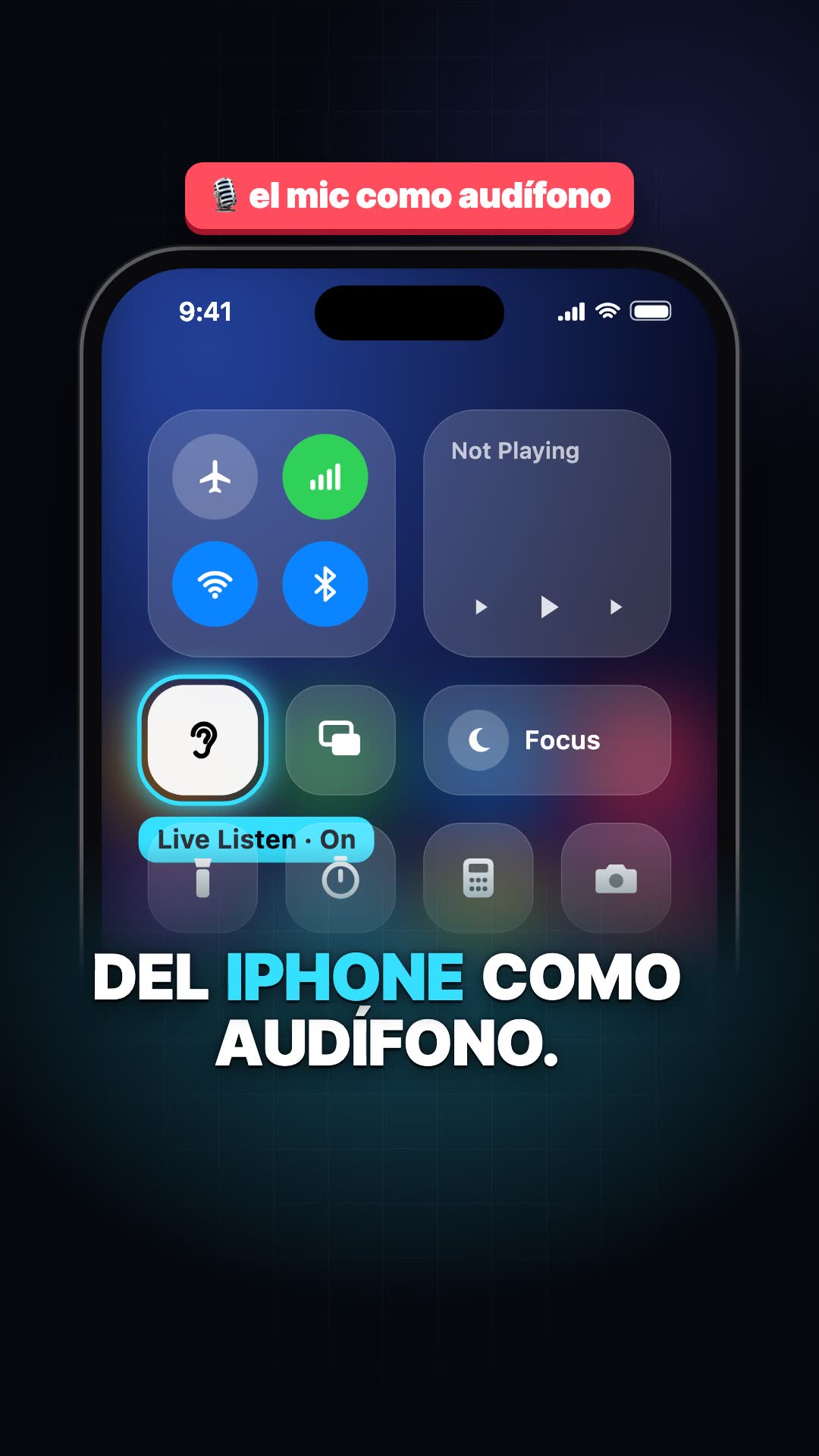
On iOS 17 and earlier you did this in Settings, then Control Center. Since iOS 18, Apple's Control Center guide has you edit it right inside Control Center.
The same editing screen works the other way too. If you rely on Live Captions, tap Add a Control and look in the hearing and accessibility sections. A Live Captions control there turns it on and off with one tap, without digging through Settings.
Bonus: Siri and the microphone list
Two more settings I check on any new iPhone. First, if you never talk to Siri hands free, go to Settings, then Siri (Apple Intelligence & Siri on some models), then Talk to Siri, and choose Off. Apple's Siri settings guide notes that on some iOS versions this option is called Listen for, which is the name in the reel.
Second, go to Settings, then Privacy & Security, then Microphone. You get the list of every app that ever asked for the microphone, each with its own switch. If an app has no reason to hear you, turn it off. You can always turn it back on the day you need it.
The habit I trust most is watching the top of your screen. Apple shows an orange dot whenever an app is using the microphone. If you see it and you do not know why, open Control Center. It tells you which app used it recently.